
MT Quick Start
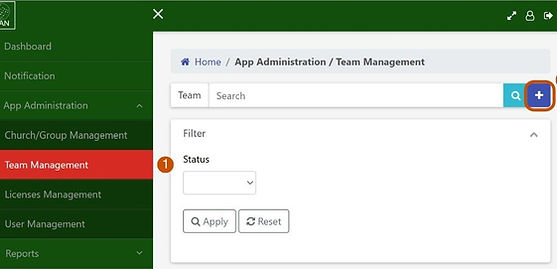
Step 1: Create Team
-
Go to App Administration/Team Management (1)
-
Select "+" (2) on the top right
-
Enter the team name and select Save
The team name will appear in the display
Note:
1. The team leader can edit the team name
2. The available licenses can be seen in Licenses Management
Step 2: Invite WT Leader/Member
-
Go to App Administration/User Management (1)
-
Select "+" (2) on the top right
-
Select the Role (Leader/Member)
-
Enter the name, email, and mobile number
-
Select Invite
-
The invited user receives an email with instructions to download the app, register, and activate.
Note: You need to invite the WT leader. Although you can invite WT members, it is highly recommended that you guide the WT leader to invite the witnessing team members and manage and lead the team.


Step 3: Reports: Monitor and follow up
Go to Reports and select
-
App Users (1) to view the Witnessing Team reports
-
Web User (2) to view the Mobilizing Team (MT) details
-
Reached/Decided (3) to view the witnessing relationship progress
Important aspects to monitor and follow up
-
Report/App User/Team Interaction
-
Meetings: Number of meetings the WT member attended
-
DT: Number of Daily Thoughts the WT member has gone through
-
CC: Number of Witnessing Concepts the WT member has gone through
-
-
Report/Reached/Decided
-
The Reached/Decided report helps you observe and understand the progress a WT member is making in developing witnessing relationships.
-
Other functions
1. Add new member to a completed Witnessing Team
If a WT leader wants to add more members to a completed team with fewer than 5 members, he will contact you. You need to do the following to make the "Click here to add new member" button appear in the leader's dashboard.
-
Go to the App Administrtaion/Team Management
-
Select the edit icon (1) corresponding to the team
-
Select and enable the "Add New Member" "Enable" icon (2)
The Team leader receiives a email intimation and steps to follow.


2. Random Users
Random users are those who downloaded and registered without being invited. Proper due diligence must be carried out to determine if the user is a legitimate individual. There is a chance that those with ill intent may download and register for the witnessing framework. Therefore, those who approve them must take all precautions.
1. Where to find Random Users
-
Go to user management (1)
-
Select the status "Random" (2) in the Filter/Status
-
Select "Apply."
-
Select "edit" icon (3) to view the details.
The list of users with random users will be displayed.
2. Verify User
Call and verify whether the user is a Christian, legitimate, and known to you. Without fully verifying, please do not approve the user.
3. Approve the user
-
Change the role (4) to either team leader/member.
-
Select a team you want to assign the user to
-
Sele"Save"ave
-
The user received the email with instructions to activate
4. Delete the user
If the user does not seem legitimate and is not able to verify their identity, please delete (3). The user will receive an email intimation.
.png)